Annual VAT return
Check the annual VAT return, reconcile it with the advance returns, finalise it and transcribe it into ELSTER.
Available in the plans: Business Pro
Under Annual VAT return (USt-Erklärung) Kontelio calculates the Umsatzsteuererklärung, the annual VAT return, from all postings of a calendar year. It compares the year with the advance returns you have finalised. As with the advance return, Kontelio does not file anything: you transcribe the values into ELSTER yourself and then record the filing here.
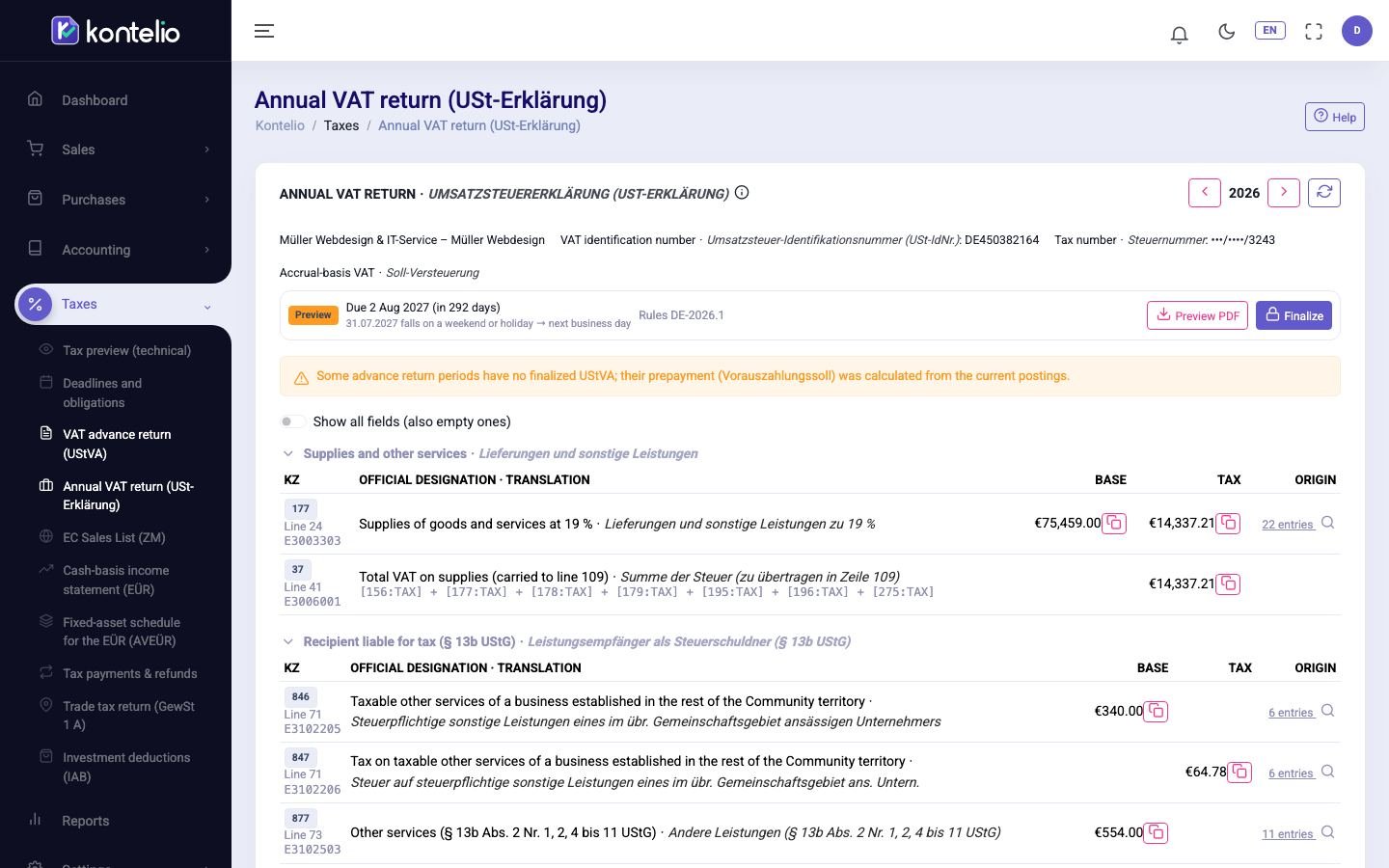
Open the year
- Click Annual VAT return (USt-Erklärung) in the menu. Kontelio opens the previous year, because the annual return is filed after the year has ended.
- Change the year with the arrows next to it (Previous period, Next period).
The table follows the official form: Kennzahl, line, ELSTER field, official label and value. Show all fields (also empty ones) shows empty fields too. Clicking the number of postings under Origin shows the accounts, postings and documents behind the value. Calculated fields show their formula under the label instead of postings.
The return also contains the form's intermediate sums (for example Kz 37, 56, 68, 103 and 116), which Kontelio calculates from the fields above them. For Kz 81 and 86, tax base and tax are in separate columns. At the bottom follow Kz 816 (remaining VAT or remaining surplus), Kz 125 (Vorauszahlungssoll: the total of the year's finalised advance returns) and Kz 820 (final payment or refund). From 2026 the form leaves out the fields that Kontelio does not derive from your postings.
Reconcile with the advance returns
Under Reconciliation with the VAT advance returns each advance return period of the year is listed with:
| Column | Meaning |
|---|---|
| Version | The last finalised version of the advance return, marked correction for a correction. "—" means: not finalised. |
| Declared | The result of this version. |
| Current | The result from today's postings. |
| Difference | Highlighted in yellow when the declared and the current value differ. |
| Filed on | The date you recorded when filing the advance return. |
Clicking the period opens the advance return. A difference points to an advance return that no longer matches the postings; you can create a correction there (see VAT return (UStVA)).
Finalise, transcribe and record
- Click Finalize, confirm the notices and then Finalize. The return is created in the background; you can close the dialog and will be notified when it is ready.
- Click Prepare filing and transcribe the values field by field with the copy icon (⧉) into the Umsatzsteuererklärung in ELSTER.
- After submitting in ELSTER, click Register filing and record the date, Transferticket and, if you have it, the transmission protocol.
VAT return (UStVA) describes the individual steps, the statuses and the correction in detail; they are the same here.
Good to know
- Preview PDF creates the PDF of the current state in the background and downloads it when it is ready.
- The general deadline is 31 July of the following year; it is also shown under Deadlines and obligations.
- Like the advance return, the annual return covers your whole business, not each activity.