Import bank statement
Read in bank statements as CAMT, MT940 or CSV, check the balance continuity and then reconcile.
Available in the plans: Business Pro
With Import bank statement you read in the transactions of your bank account from a file you download in online banking. Kontelio then suggests the matching invoice or expense for every transaction, and you reconcile the transactions under Bank and cash. The import itself does not post anything yet.
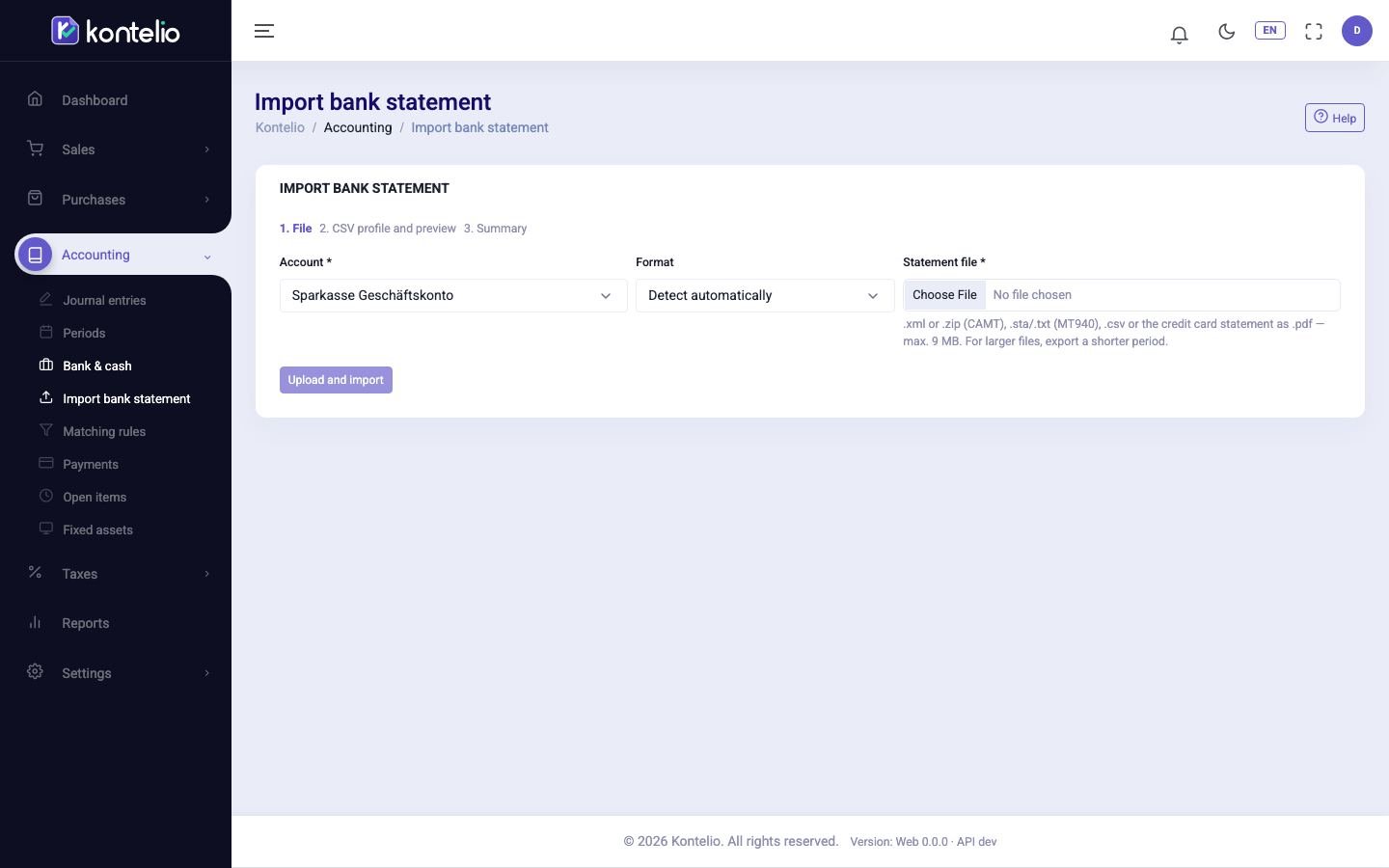
Import a bank statement
- In online banking, download the bank statement as a file, preferably in the CAMT.053 format.
- In the field Account, choose the bank account. If you come from Import on the card of an account, it is already selected.
- Leave Format on Detect automatically or choose the format yourself.
- Under Statement file, choose the file:
.xmlor.zip(CAMT),.staor.txt(MT940) or.csv, at most 9 MB. - Click Upload and import.
Small files are processed at once, large ones in the background; a notice is shown until the result is ready. If a file is too large, export a shorter period in online banking.
Read in CSV files
For a CSV file, the step 2. CSV profile and preview follows, because every bank structures its CSV file differently.
- Kontelio recognises the files of common banks such as Sparkasse, Volksbank, ING or N26 and chooses the Bank profile itself. Check in the preview that date, amount and payment reference were recognised correctly.
- If not, choose another profile or Custom (map the columns). You then map the columns yourself, for example Separator, Date format and Sign convention.
- Click Update preview and check the preview again.
- Click Confirm import.
A custom profile is saved with the account and is available again for the next import.
Read the credit card statement as PDF
In a credit card account you can import the monthly PDF statement of the Sparkasse (Mastercard or Visa) directly, without CSV. Before the import comes the step 2. Review the lines.
- Choose the card account and the
.pdffile and click Read statement. Nothing is saved yet. - Check the lines read. Purchases in a foreign currency show the currency, the original amount and the rate; the currency fee becomes a line of its own, and the payment of the previous statement appears as a payment.
- Correct what is needed: date, description and amount can be changed. With Remove line and Add line you remove or add lines. Changed lines are highlighted.
- Below, Kontelio compares the sum of the lines with the closing balance of the statement. If they differ, a warning appears, but you can still import.
- Confirm the import. The original PDF is archived and the changes are recorded with the amount read originally.
Check the result
The Import summary shows the counts Read, New, Duplicates ignored and Invalid lines, the invalid lines each with line number and reason.
For the Balance check, Kontelio compares the opening balance of the statement with the closing balance of the previous one:
| Result | Meaning |
|---|---|
| OK | The statement follows the previous one without a gap. |
| Gap | A period is missing before this statement. Import the missing statement. |
| Difference | The balances do not match. Check whether transactions are missing or duplicated. |
Then click Reconcile now to reconcile the transactions, or Import another file. Under Previous imports you see all earlier imports of the account with period and balance check.
Good to know
- The same file can only be imported once. If you try again, Kontelio shows you the earlier import with Show the previous import.
- If two statements overlap, transactions that already exist are recognised and skipped. Two identical transactions on the same day in the same file still remain two transactions.
- If the IBAN in the file belongs to another account, the import stops. Choose the right account at the top.
- The original file is archived unchanged and encrypted before it is processed.
- Right after the import, Kontelio looks for suggestions in the background. A matching rule with automatic confirmation can post unambiguous transactions at once; all others wait for your decision.
- Only users with the permission to record payments can import.