VAT return (UStVA)
Check the UStVA of a month or quarter, finalise it, transcribe it into ELSTER by hand and record the filing.
Available in the plans: Business Pro
Under VAT advance return (UStVA) Kontelio calculates from your postings the values of the Umsatzsteuer-Voranmeldung (UStVA) — the periodic advance VAT return to the tax office. The values appear field by field (Kennzahl, Kz) in the order of the official form. Kontelio does not send anything to ELSTER: you transcribe the values into Mein ELSTER yourself (or your tax adviser does) and then record the filing here.
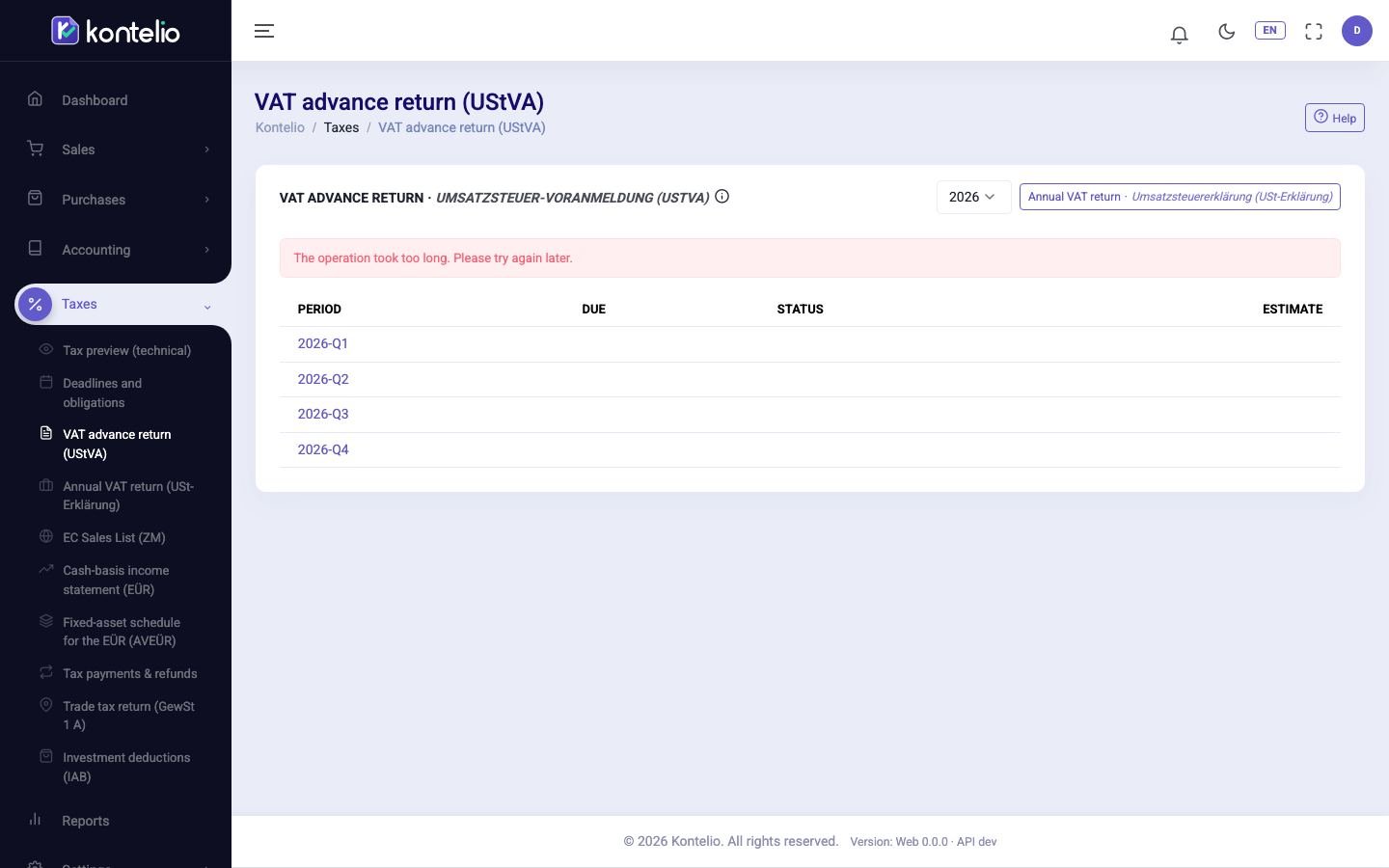
Open a period
- Choose the year at the top. The list shows every return period with Due, Status and Estimate, the expected result from today's postings.
- Click the period, for example
2026-Q3.
Whether you see months or quarters depends on the return period in your VAT profile under Taxpayer. The Annual VAT return (USt-Erklärung) button takes you to the annual return of the same year.
Check the values

The header shows your name, tax number, accrual or cash accounting, the due date and the rule set used (for example DE-2026.1). Use the arrows or the selector to change the period.
- Each row is a Kennzahl with its official German label, the line on the form and, where available, the name of the ELSTER field. For turnover you see Base and Tax. This also applies to fields 81 and 86: turnover and tax are in separate columns.
- Empty fields are hidden. Show all fields (also empty ones) shows the whole form.
- At the bottom is the result in Kz 83: Amount payable or Refund.
- In the Origin column, click the number of postings. A side panel shows the accounts, the journal lines with their documents and the original file. Download the journal lines with CSV.
- Yellow notices above the table point out, for example, draft documents dated in the period that are not included.
- not reviewed next to a field means: this field has not yet been reviewed in Kontelio's form catalogue but has a value. Check the postings behind it before you transcribe the value.
Preview PDF creates a PDF of the current state, for example for your tax adviser.
Finalise
- Click Finalize. Only users with the right to finalise tax returns see this button.
- The Finalize return dialog names the months that will be locked afterwards. If there are notices, tick each one.
- Add a Notes (optional) if you like.
- Click Finalize.
Kontelio recalculates the values on the server, stores them as an unchangeable version (v1) with a checksum and archives the PDF. The status changes to Finalized. The months of the period are locked: new postings dated in them are no longer possible (see Periods). If nothing has changed since the last version, Kontelio does not create a new one.
Transcribe into ELSTER
- Click Prepare filing. Transcription into ELSTER appears above the table with a progress bar, and each field gets a checkbox.
- In Mein ELSTER, open the Umsatzsteuer-Voranmeldung for the same period.
- Click the copy icon (⧉) next to a value. Kontelio copies it in the format ELSTER expects (for example
32408or6157,52). Paste it in ELSTER into the field with the same Kennzahl. - Tick the field. The ticks are only a memory aid and are stored only in your browser.
- Finally, compare the result ELSTER calculates with Kz 83 in Kontelio before you submit in ELSTER.
Record the filing
- Click Register filing.
- Enter Filed on (today at the latest) and under Channel choose ELSTER (manually, Mein ELSTER) or Tax advisor.
- Copy the Transferticket from the ELSTER confirmation (letters, digits and hyphens).
- Upload the Transmission protocol (Übertragungsprotokoll, PDF) if you have it.
- Click Register.
The status changes to Filed, with date and Transferticket. Filing receipt opens the uploaded protocol. If the date is after the deadline, Kontelio points out that the tax office may charge a Verspätungszuschlag (late-filing surcharge). Only the newest version can be recorded as filed.
When postings change later
If a later posting affects a finalised period (for example in a reopened period), the return changes to Outdated. A red notice shows the declared value, the current value and the difference per field, and under Caused by the postings that caused the difference.
- In the red notice, click the button that creates the next version as a correction.
- Confirm the dialog as when finalising.
- Transcribe the new version into ELSTER and record the filing again.
The new version is marked correction. Under Versions you see all versions with their PDF and can compare each version with the previous one.
Statuses
| Status | Meaning |
|---|---|
| Preview | Calculated from today's postings, nothing stored. The values change with every posting. |
| Finalized | Version stored, PDF archived, months locked; no filing recorded yet. |
| Filed | The filing is recorded with date and Transferticket. |
| Outdated | The postings differ from the last version; a correction is possible. |
Good to know
- The UStVA covers your whole business: Kontelio combines all your activities; there is no UStVA per activity.
- If a Dauerfristverlängerung (permanent one-month extension of the filing deadline) is set in your VAT profile, the due date moves by one month. If it falls on a weekend or public holiday, the next working day applies.
- From 2026 the form only contains the fields that Kontelio derives from your postings. Rare fields such as Kz 39 (Sondervorauszahlung, the special prepayment) or Kz 59 and 69 are left out; enter them directly in ELSTER if you need them. Kontelio does not calculate the special prepayment. In returns up to 2025 a posted special prepayment still appears in Kz 39 of the last period.
- All users with access to tax reports can read; finalising and recording the filing need a separate right. The tax screens are available from the Business plan.
Simplified mode
In the simplified mode the screen is the same, only the buttons are named differently: Close the period (entries become locked) instead of Finalize, I already filed in ELSTER instead of Register filing and ELSTER protocol number (Transferticket) for the Transferticket.