Payments
See all incoming and outgoing payments, record payments to suppliers, post cash discounts and reverse payments.
Under Payments you see all payments of your business: payments received from customers, payments to suppliers, refunds and offsets. Every payment is allocated to one or more documents and is posted at once. Payments from the bank reconciliation appear here too.
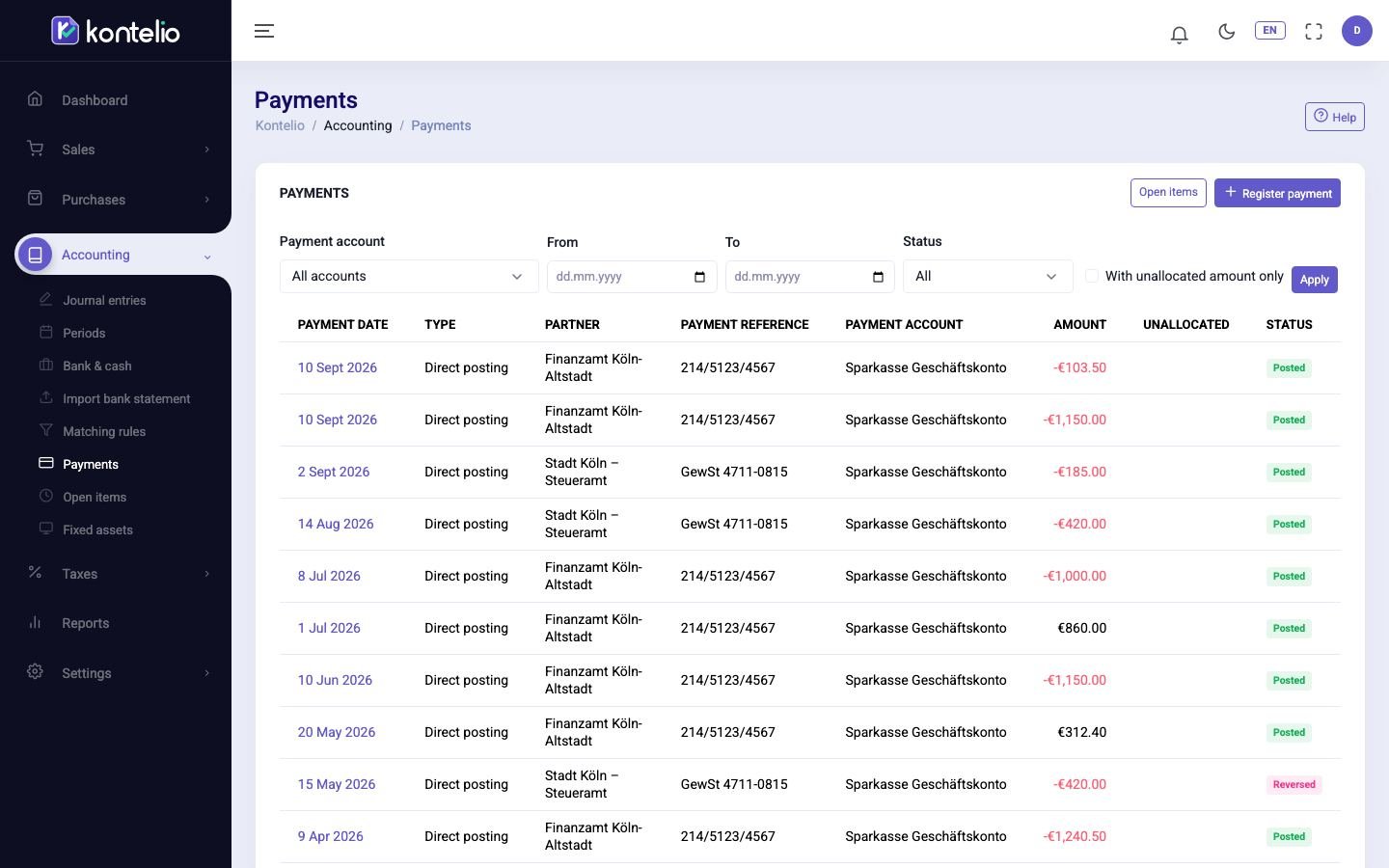
Find payments
- Narrow down the list, for example by Payment account, a period (From / To) or the Status.
- With With unallocated amount only you see only payments not yet fully allocated to a document, for example advance payments.
- Click Apply.
The column Type shows the kind of payment, such as Incoming payment, Outgoing payment or Offset (no money).
Record a payment to a supplier
- Click Register payment. It is easier under Open items: tick the documents there and click Pay; the editor is then already filled in.
- Choose the Supplier. Their open documents appear under Open items.
- Check Payment account and Payment date.
- Tick the documents that were paid. The Amount paid is pre-filled with the open total; change it if a different amount was actually paid.
- Enter the Payment reference if needed.
- Click Post payment.
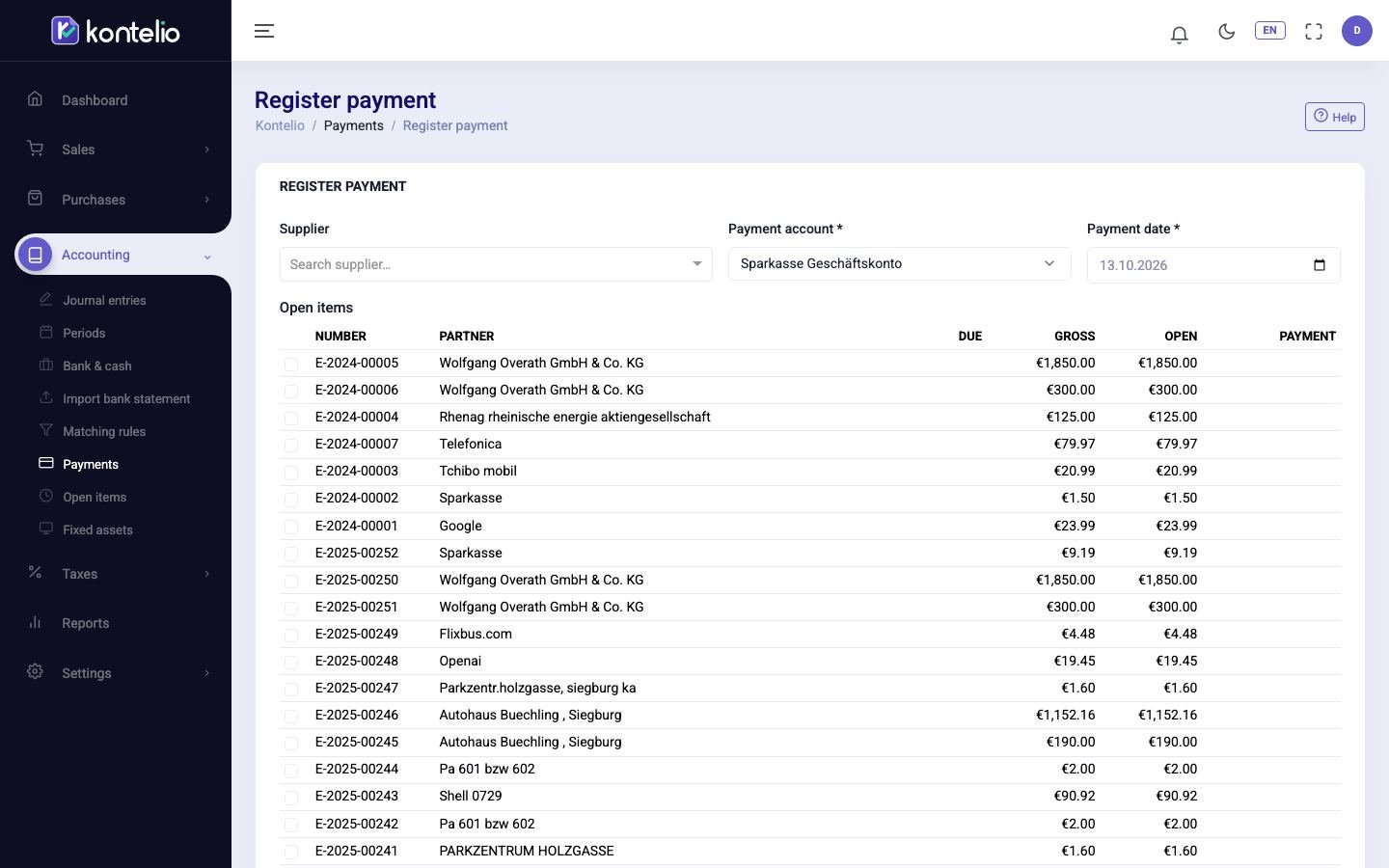
Payments received from customers are easiest to record in the invoice with Register payment or under Open items in the tab To receive. The editor is then called Register receipt and shows the customer's open invoices.
Partial payment, cash discount and overpayment
- Partial payment across several documents: under Allocate a partial payment choose how the amount is distributed: Proportionally, By due date (earliest due date first) or Manually.
- Cash discount: if the amount is lower than the open total, Kontelio offers to post the difference as a cash discount. Without this tick the rest stays open.
- Overpayment: if the amount is higher, a notice appears. With Record the unallocated amount as an advance payment (Anzahlung) the rest is kept as an advance payment.
- Offset: if you tick a credit note and invoices of the same partner, you can offset them against each other without any money changing hands; the button is then called Post offset. If you tick only a credit note, you record its refund.
View and reverse a payment
In the list, click the payment date. The view shows amount, account, partner, the Allocations with kind and document, and the Journal entry that was generated.
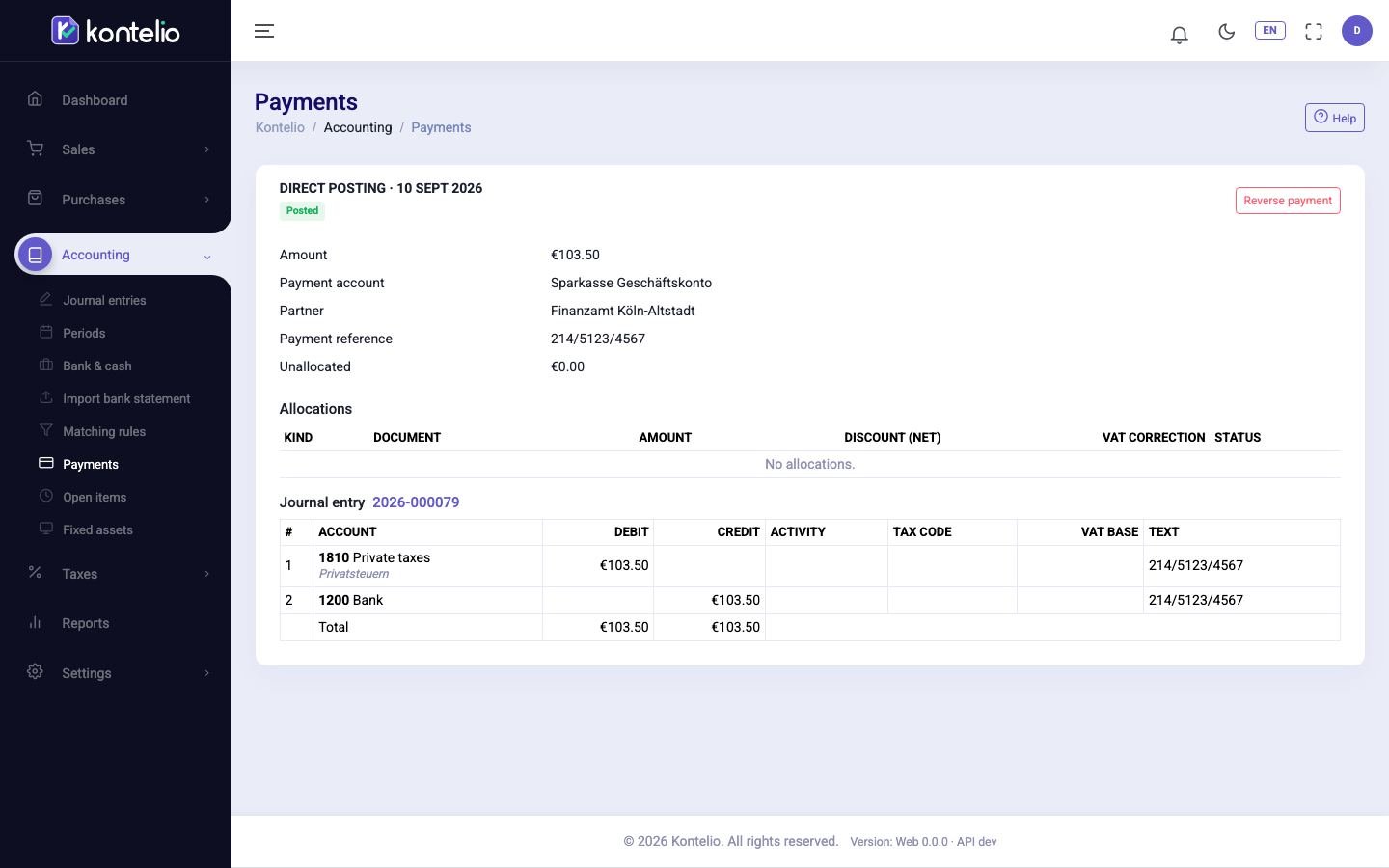
- Click Reverse payment.
- Enter a reason and confirm.
The payment gets the status Reversed, its allocations are cancelled and the documents are open again. The original entry is kept; Kontelio posts a reversing entry.
Good to know
- The status of an invoice or expense (Partially paid, Paid) follows from the allocated payments.
- Recording payments and reversing payments are separate permissions.
- To see the payments of a single account with its balance, click the account name under Bank and cash.