Invoices
Draft, issue, send, mark as paid and correct the invoices you send to your customers.
Under Invoices you write invoices to your customers and keep track of which ones are still open or overdue. An invoice starts as a draft that you can change as often as you like. Only when you issue it does it get its number and is it posted; from then on it can no longer be changed.
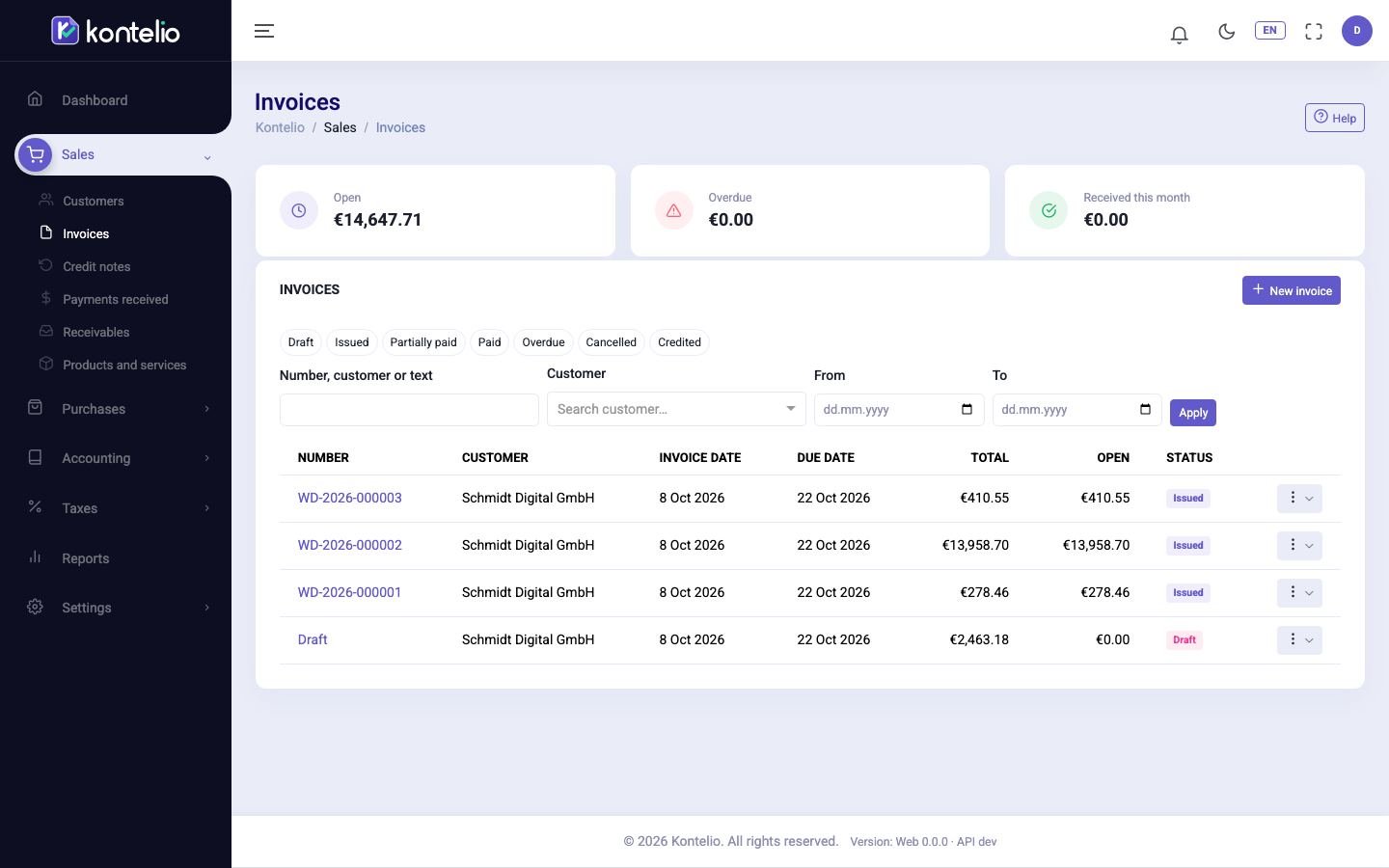
Find invoices
At the top you see three totals in euros: Open, Overdue and Received this month.
- Click one or more statuses, for example Overdue. The list immediately shows only those invoices; a second click removes the filter again.
- If needed, enter a search term in Number, customer or text, choose a Customer, an Activity or a period (From / To).
- Click Apply.
The filters are part of the page address. You can bookmark the link or share it.
The Actions (⋮) button at the end of each row gives you the most common steps without opening the invoice: Open, Download PDF, Send, Register payment, Duplicate and Cancel invoice. Only the actions that are possible for the invoice's status appear.
Create an invoice
- Click New invoice. The editor opens with the mark ENTWURF / DRAFT.
- Choose the Customer. If the customer does not exist yet, create them right here with the plus button (New customer). Language, currency, payment terms and activity are taken from the customer's details.
- Choose the Activity if you have more than one.
- Check the Invoice date and the Date of supply.
- Under Items, fill in the first line: choose a product in Product / service or type a Description, then quantity, unit and price. Add more lines with Add item.
- Check the amounts and notes in the Totals panel.
- Click Save draft. You can keep working on the draft at any time, even if it is still incomplete.

Preview shows the PDF as the customer will receive it, with a "draft" watermark and no number. Kontelio saves your draft when you do this; the preview PDF itself is not archived.
| Field | Meaning |
|---|---|
| Date of supply | The day the goods were delivered or the service was performed. = invoice date prints a note on the invoice that the date of supply is the invoice date; Period is for ongoing services, for example a month of support. |
| Payment terms (days) | Kontelio uses it to calculate the Due date. After that day an unpaid invoice becomes overdue. |
| Document language | Language of the PDF and the e-mail: German, English or both side by side. |
| E-invoice format | PDF or an e-invoice (ZUGFeRD, XRechnung). The default is the customer's setting. |
| Prices | Whether you enter unit prices net or gross. |
| More references | Order, contract and project number, and the Buyer reference / Leitweg-ID that public authorities require for e-invoices. |
| Tax code | Sets the VAT rate of the line. Kontelio suggests it from the customer and the product; if you choose it yourself, your choice is kept. |
| Internal notes | For you and your team only; never appears on the invoice. |
Issue the invoice
- Open the draft and resolve all red notes. As long as mandatory details are missing, Issue stays disabled.
- For an e-invoice you can check in advance under Check E-Rechnung with Check whether the file would be valid.
- Click Issue.
- In the dialog, confirm each yellow note and then confirm issuing.
The invoice now gets the next number of its number series and the status Issued, and it is posted to the journal. The PDF is created in the background and archived so that it cannot be changed; while it is being created, Download PDF and Send are not yet available.
Work with an issued invoice
Click the invoice number in the list. The view shows the invoice exactly as it was issued.
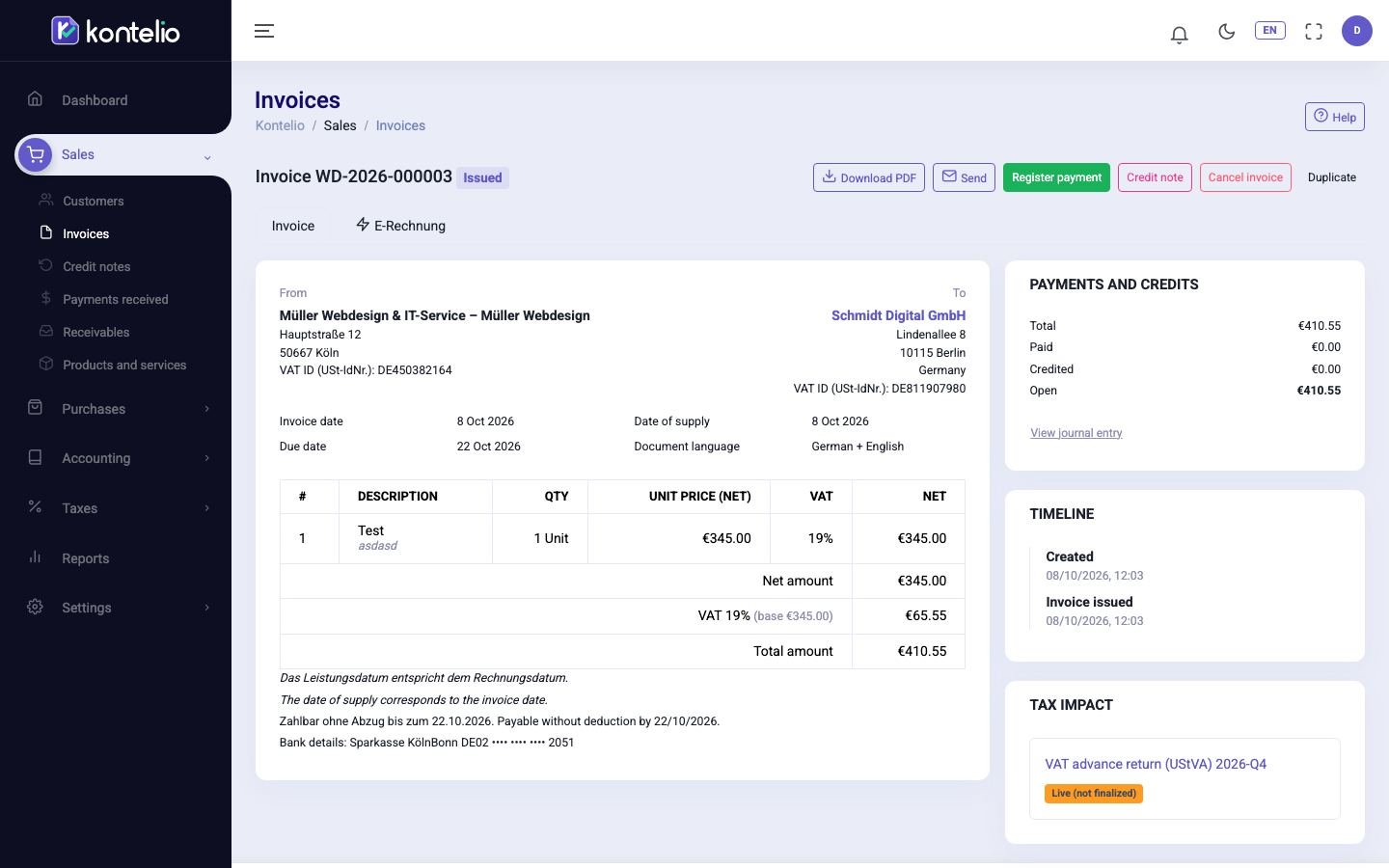
| Button | What happens |
|---|---|
| Download PDF | Downloads the archived PDF — always exactly the document that was issued. |
| Send | Opens an e-mail with recipient, CC, subject and text in the document language; the PDF is attached. Whether it was sent appears under Timeline. |
| Register payment | Opens payment entry under Payments, already filled in with the customer and the invoice. |
| Duplicate | Creates a new draft with the same details, for example for next month's invoice. |
The Payments and credits panel shows how much has been paid, corrected and is still open, and View journal entry leads to the journal entry. The Tax impact card shows which VAT return and which Anlage EÜR the invoice feeds into. In the E-Rechnung tab you create the electronic version of the invoice or download its XML.
Correct or cancel an invoice
- Correct part of it: click Credit note, choose a reason and date, and enter the Quantity to credit for each line. Create draft creates a correction as a draft, which you check and issue under Credit notes.
- Cancel it completely: click Cancel invoice. Kontelio creates and immediately issues a cancellation invoice for the full amount. With Cancel and create a corrected invoice (new draft) you also get a new draft with the details of the old invoice, which you correct and issue again.
In both cases the original invoice stays unchanged. Cancelling is only possible as long as there is no partial correction. If the invoice had already been paid, it is marked to refund.
Statuses
| Status | Meaning |
|---|---|
| Draft | No number and no posting yet; can be changed and removed with Delete. |
| Issued | Issued and posted, no payment yet. |
| Partially paid | Part of the amount has been received. |
| Paid | Paid in full. |
| Overdue | The due date has passed and something is still open. Kontelio checks this every night. |
| Cancelled | Fully reversed by a cancellation invoice. |
| Credited | Corrected in full by correction documents. |
You do not change the status by hand: it follows from issuing, the payments allocated and the corrections.
Good to know
- Each activity has its own gap-free number series per year. You set its format and prefix under Invoice number series, and the logo and standard texts under Invoice layout and texts.
- If the invoice date falls in a locked period, the invoice cannot be issued.
- For an invoice in a foreign currency, Kontelio also shows the VAT in euros, using the official conversion rate for the date of supply. If that rate has not been published yet, the invoice cannot be issued yet.
- If the PDF could not be created, Generate PDF again appears. The new PDF is generated from the same stored data and has identical content.
- Which buttons you see depends on your permissions: editing drafts, issuing and sending invoices, and recording payments are separate rights.
Simplified mode
If you use the simplified mode and have set up your profile under Customise my experience, the screen looks a little different:
- The list has an extra Credit notes tab.
- The editor is organised into For whom, What and When; fields you rarely need are collapsed at first. Instead of a single button there are Issue and download PDF and Issue and send by e-mail.
- In an issued invoice you record a payment with I received the payment directly in a dialog. Correct invoice guides you through cancelling and creating a new copy; partial correction and plain cancellation are under More actions.