Expenses
Record, post and pay supplier invoices, receipts and self-issued receipts, and reverse or correct them when needed.
Under Expenses you record everything your business buys and pays: supplier invoices, till receipts, customs documents and self-issued receipts. Kontelio posts each expense with its input VAT and shows how much of it is still open. If you have many documents, the way through Receipts and documents is usually faster.
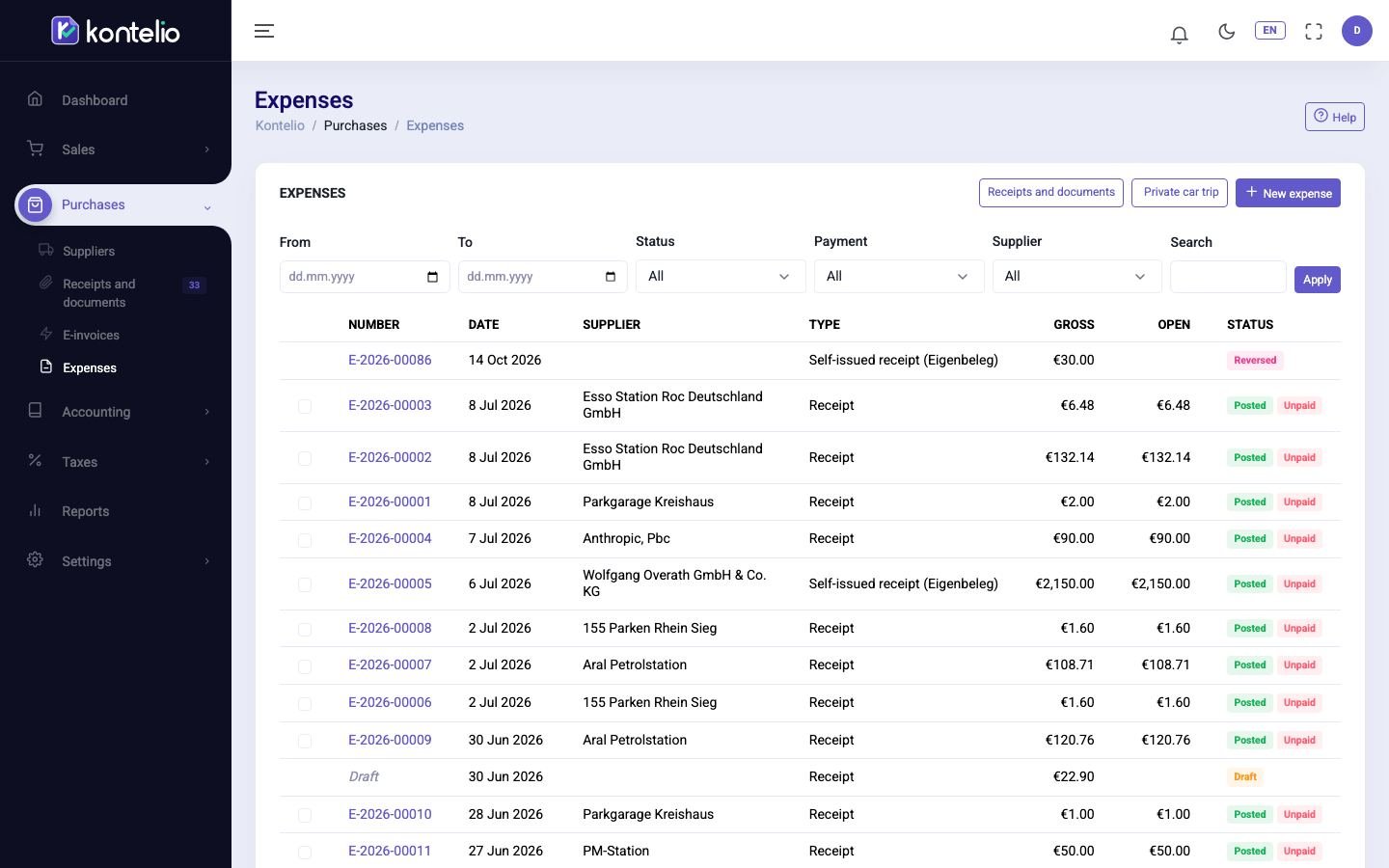
Find expenses
- Narrow the list with From and To, Status, Payment or Supplier, or type a term in Search.
- Click Apply.
The column Open shows what has not been paid yet of a posted expense. Drafts have no number yet and appear as Draft.
To pay several open expenses of one supplier together, tick each of them and click the "Register payment" button that then appears above the list. The payment entry opens with these expenses.
Record an expense
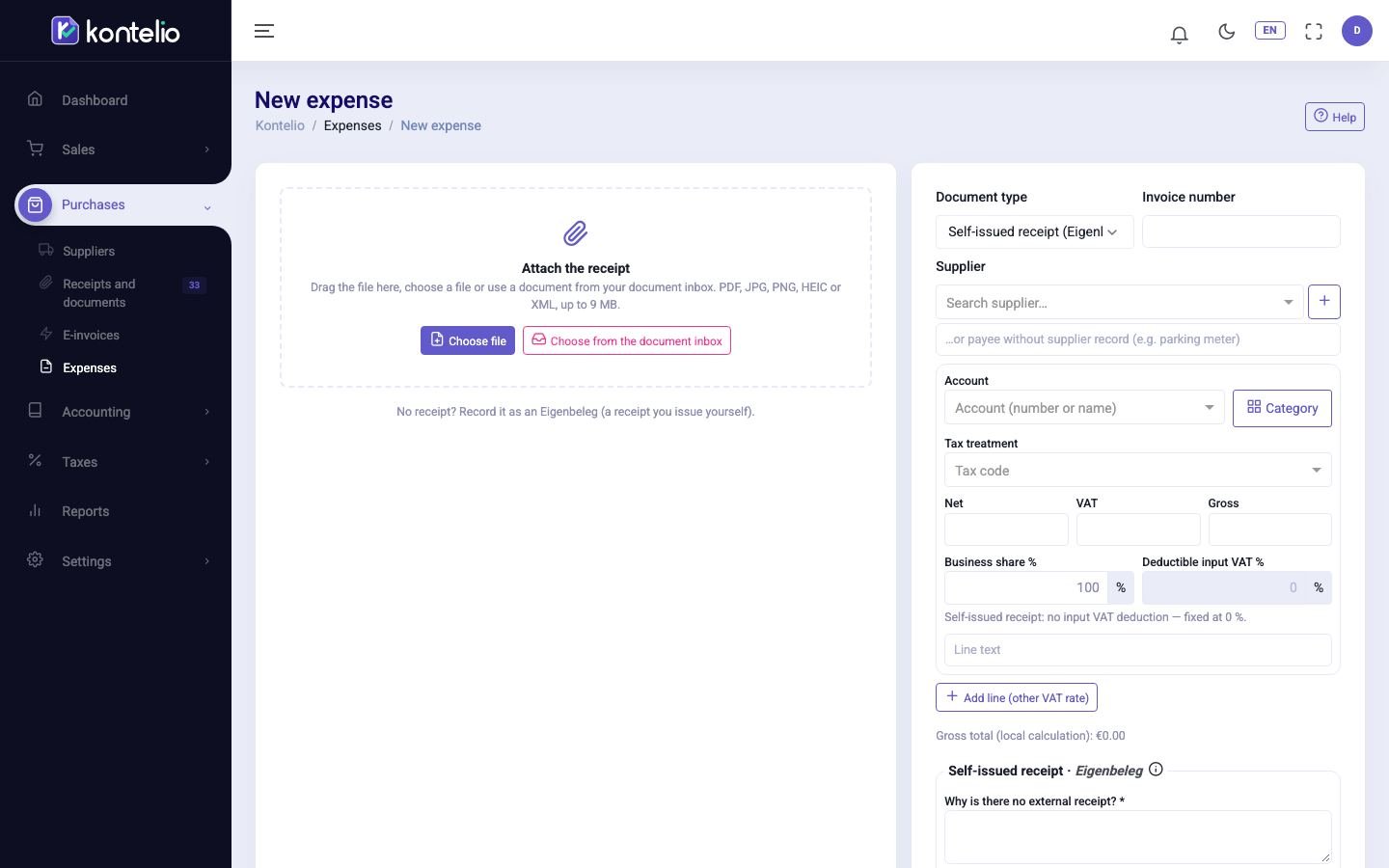
- Click New expense.
- Under Attach the receipt, attach the document: with Choose file, Take photo or Choose from the document inbox.
- Choose the Document type and enter the supplier's Invoice number.
- Choose the Supplier. For a one-off recipient without master data, such as a parking meter, type a Payee instead. The supplier's defaults are applied.
- Choose the Account or click Category to pick from the most important categories. Then choose the Tax treatment.
- Enter the amounts. If the document has several VAT rates, add one line per rate with Add line (other VAT rate).
- Check Document date and Due date.
- If the document is already paid, for example in cash or by card, leave Paid now switched on and choose the cash box or bank account under Paid from. If you pay later, switch it off; the expense then stays open.
- Check under Result what will be posted: business expense, input VAT and, if any, private share.
- Click Post (Ctrl+Enter), or save a draft with Save draft to finish later.
When posted, the expense gets its internal number and the document files are archived so that they cannot be changed.
| Field | Meaning |
|---|---|
| Document type | Incoming invoice, Receipt, Self-issued receipt (Eigenbeleg), Credit note received, Customs document (import VAT) or Other. Required fields and the tax treatment depend on it. |
| Business share % | The share used for the business. The rest is posted as private share and does not reduce the profit. |
| Deductible input VAT % | Which share of the VAT on the document is deducted as input VAT. |
| Activity | Only with several activities. With Split between activities… you spread a line over several activities. |
| More fields | Service period, Currency, Amounts entered as (gross or net) and a Description. |
| Exchange rate to EUR | Only for a foreign currency. Kontelio fills in the official rate; when posting, the rate of the service date applies. |
Special cases when recording
- Without a document: if the document is missing, choose Self-issued receipt (Eigenbeleg). Explain under Why is there no external receipt? in at least 20 characters why, and confirm I confirm that the information is correct.. When posting, Kontelio creates a PDF from it.
- Foreign supplier: if a supplier from another EU country invoices without VAT, Kontelio suggests the matching tax treatment for the Reverse-Charge-Verfahren; Apply applies it.
- Business meals: on an entertainment account Kontelio asks for Occasion of the business meal and Participants. 70 % is deductible as a business expense, the input VAT in full.
- Purchases of equipment: if a line on an equipment account is above €250 net, Kontelio asks: Is this a fixed asset? Choose Normal expense, Low-value asset (GWG) (up to €800 net) or Fixed asset (depreciation). After posting, you create a fixed asset from the expense with Register as fixed asset. A vehicle from €800 net is posted as 100 % business; a notice reminds you of the private use, which you post on the vehicle under Fixed assets.
- Imports: in the category Import VAT you enter the amount from the customs document. With the button Add other import costs you add a second line in the category Customs duties and clearance at 19 % to the same expense, for example the forwarder's fees.
- Private expenses: if the business account paid your own pension plan or private insurances, choose Personal pension or Private insurance. Kontelio posts a private withdrawal; the profit does not change.
- More categories: the group Employees contains travel costs and pay of employees (field 120 of the Anlage EÜR); Kontelio does not do payroll. Taxi rides come as Taxi, short distance (7 %) and Taxi and ride-hailing (19 %), instalments of a purchased device as Instalment purchase.
- Credit note from a supplier: open the original expense and click Credit note received. The new expense is linked to the original invoice.
- Recorded twice? If a posted invoice with the same number from the same supplier already exists, Possible duplicate appears. Only click Post anyway if it really is a different invoice.
Trips with your private vehicle
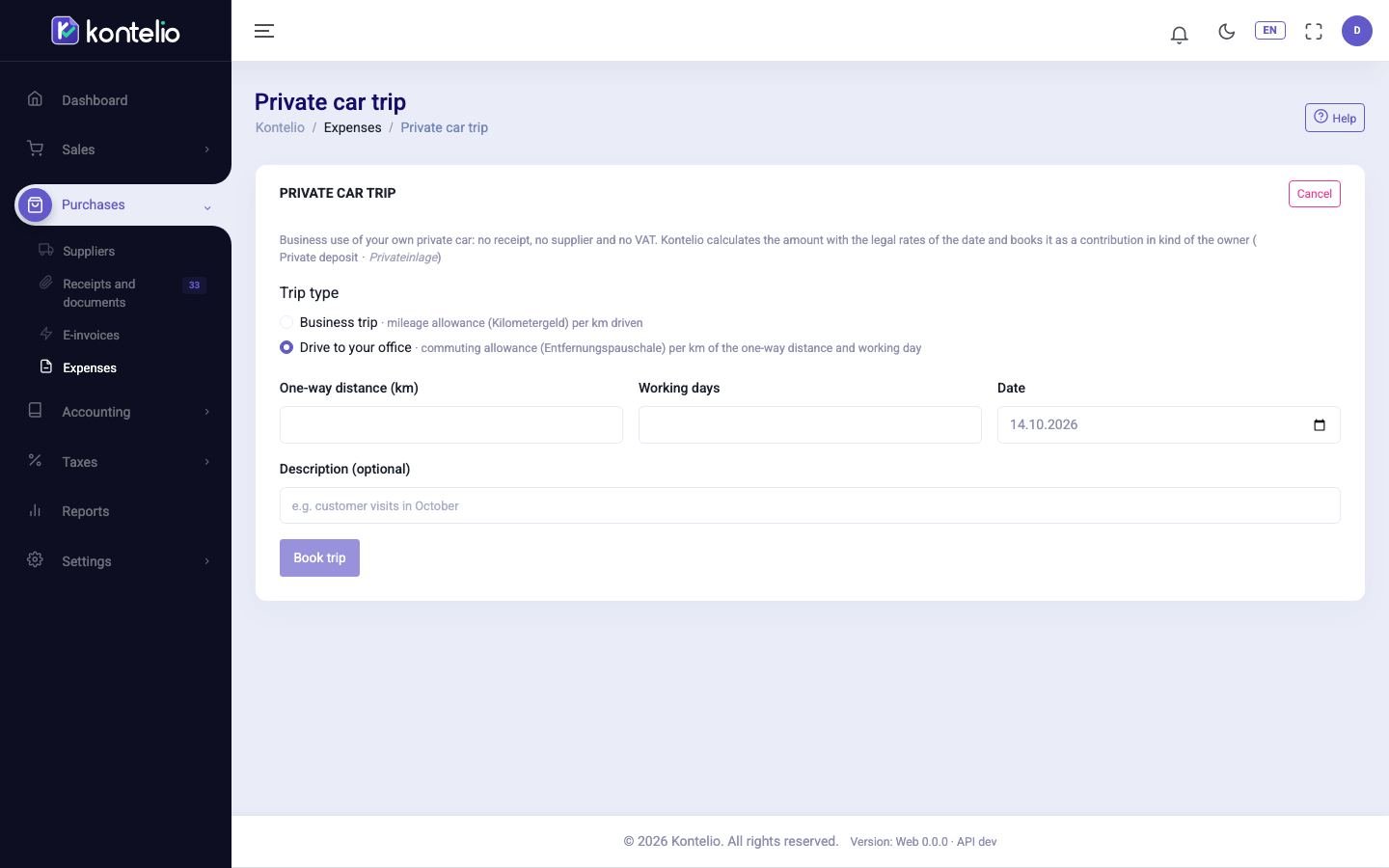
If you use your private car or motorbike for business, you need neither a receipt nor a supplier.
- In the list, click Private car trip.
- Choose Business trip (mileage allowance per km driven) or Drive to your office (commuting allowance) and the vehicle.
- For a business trip enter Total km driven; for trips to your place of business enter One-way distance (km) and Working days.
- Check the calculated amount and click Book trip.
Work with a posted expense
Click the number in the list. The tabs show Lines, Journal entry, Files and Payments. The card Tax impact shows which VAT return and which line of the Anlage EÜR the expense goes into.
| Button | What happens |
|---|---|
| Register payment | Opens the payment entry, already filled in with supplier and expense. Only while something is open. |
| Credit note received | Records a credit note from the supplier for this invoice. |
| Reverse | Cancels the posting with a reversing entry on the chosen date. You enter a reason. |
| Correct | Reverses the expense and immediately opens a copy as a new draft with the same files, which you correct and post again. |
Statuses
| Status | Meaning |
|---|---|
| Draft | Not posted yet; continue with Edit or delete it. |
| Posted | Posted. Next to it is the payment state, for example Unpaid, Partially paid or Paid. |
| Reversed | Cancelled by a reversing entry. |
Simplified mode
If you use the simplified mode and have set up your profile under Customise my experience, recording leads you through steps: Check the receipt, What did you buy?, A few questions about this purchase, Does the receipt show VAT? and Paid already?. Instead of an account you choose a category in everyday language; Kontelio only asks the questions this purchase needs and shows account, tax treatment and input VAT under How it will be posted. You post with Register expense.