Invoice layout and texts
Set the logo, colour, font, footer, bank details and the standard texts of your invoices and e-mails.
Under Invoice layout and texts you decide what your invoices and credit notes look like and which texts appear on them and in the accompanying e-mail. The settings apply to all activities of the taxpayer and to all documents you create afterwards.
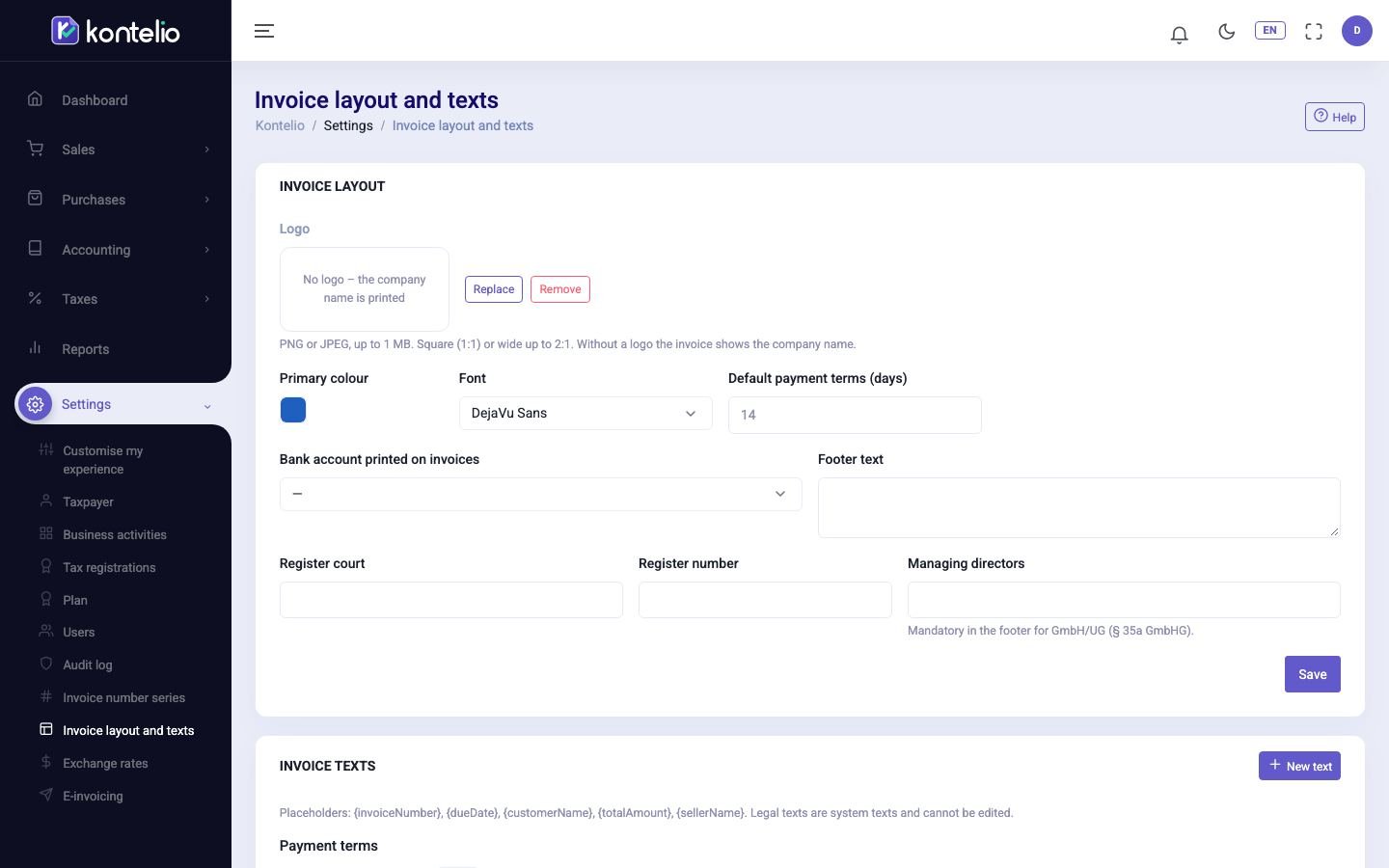
Set up the layout
- Under Logo, click Upload and choose your logo (PNG or JPEG, at most 1 MB, square 1:1 or wide up to 2:1). The logo is saved immediately and shown in the preview. With Remove, the next invoices show the company name instead of the logo; invoices already issued keep their logo.
- Choose the Primary colour and the Font.
- Enter the Default payment terms (days). It applies to new invoices for customers who have no payment terms of their own.
- Under Bank account printed on invoices, choose the account that appears on the invoice for payment.
- If needed, add the Footer text and the register details.
- Click Save.
| Field | Meaning |
|---|---|
| Bank account printed on invoices | You can choose from your active payment accounts in Bank & cash. The IBAN and BIC of this account are printed on the invoice. |
| Footer text | Free text for the footer, for example contact details or opening hours. |
| Register court, Register number, Managing directors | Mandatory for a GmbH or UG (§ 35a GmbHG). As a sole trader without an entry in the commercial register, leave the fields empty. |
Customise the invoice texts
The Invoice texts section lists the texts by category and language (de-DE, en-GB): Introduction, Closing text, Payment terms, E-mail subject, E-mail text, Footer and Legal notes (system). The text marked default is used for new documents in that language.
To change a text:
- For a text of your own, click Edit. For a supplied text marked system, click Adapt (copy): Kontelio creates a copy you can change; the original is kept.
- Change the Text. Tick Default for this category if your text is to be used from now on.
- Click Save.
You create a completely new text with New text: choose the Category and Language and enter a unique Code, for example EMAIL_INVOICE_BODY_FORMAL.
In the texts you can use placeholders that Kontelio replaces when creating the document:
| Placeholder | Replaced by |
|---|---|
{invoiceNumber} | the invoice number |
{dueDate} | the due date |
{customerName} | the customer's name |
{totalAmount} | the total amount |
{sellerName} | your name or company name |
Good to know
- Everyone with read access to the tax settings can see the page. Saving, uploading and editing texts are only possible for users who may manage these settings.
- Documents are available in German and English, or bilingual. So if you have customers in both languages, create your own texts in both languages.
- In the simplified mode you find this page under Invoices and documents, on the Layout and texts tab.