Audit log
Trace who created, changed or deleted which record and when.
The Audit log records every change to your data: who made it and when, which record was affected and how which fields changed. Actions such as issuing an invoice, posting a payment, sign-ins or revealing a masked tax number are listed here too.
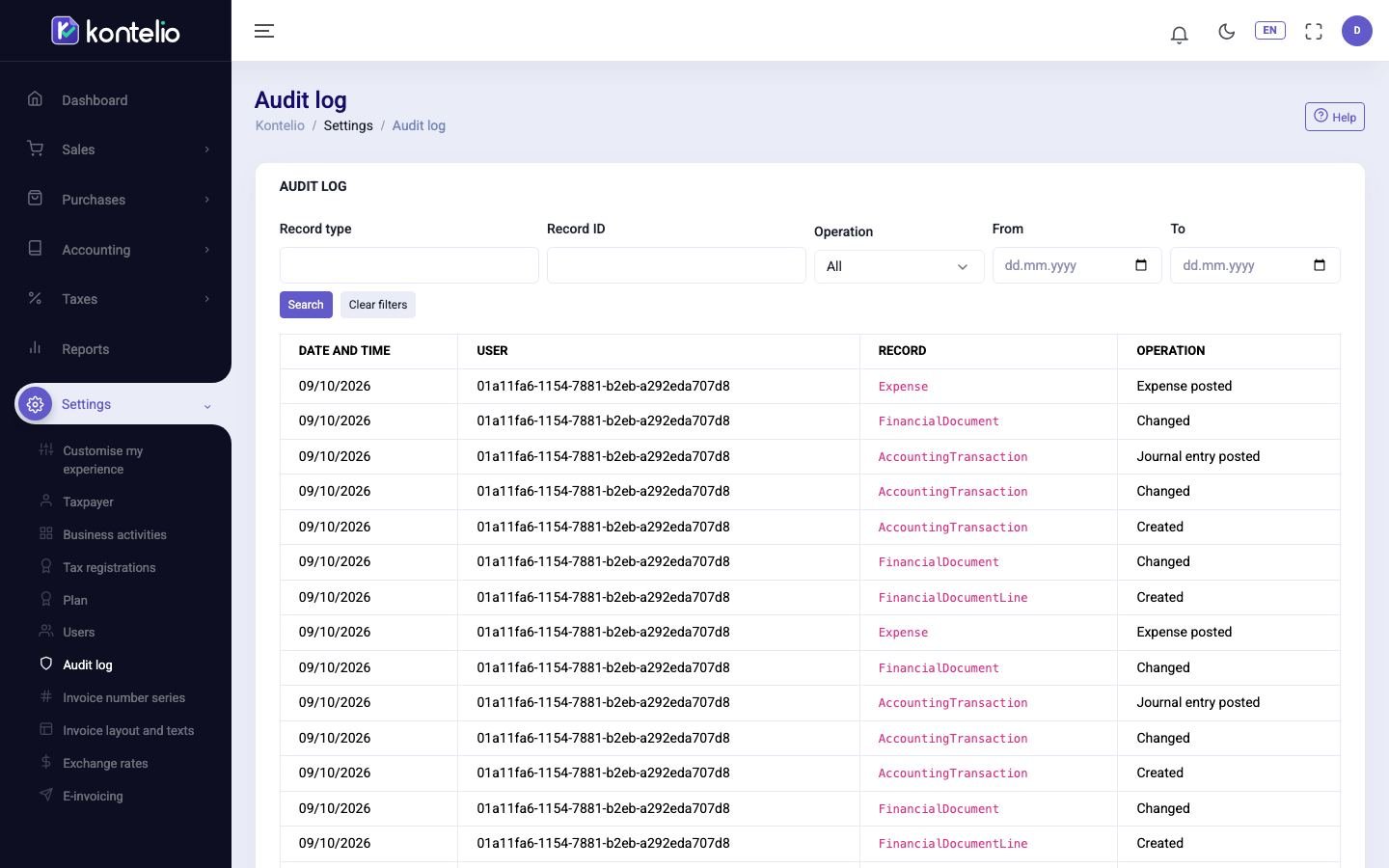
Find entries
The newest entries are at the top. To narrow down the list:
- Fill in one or more filters (see the table).
- Click Search.
- Page through with Previous and Next below the list.
Clear filters shows all entries again.
| Filter | Meaning |
|---|---|
| Record type | The technical name of the record type as shown in the Record column, for example Invoice for invoices or Payment for payments. |
| Record ID | The identifier of a single record, to see its whole history. You find it in the detail view of an entry. |
| Operation | Created, Changed, Deleted or Action (a business operation such as issuing an invoice). |
| From / To | Period of the change. |
View an entry in detail
- Click a row. Audit entry opens at the edge of the screen.
- You see the time, user, record and the Request ID, which support can use to trace an operation.
- The table below lists every changed Field with Before and After.
Confidential values such as tax numbers appear as masked: they are never stored in plain text in the log.
Good to know
- Nobody can change or delete the log, not even owners.
- The User column shows the user's internal identifier. If it shows “—”, Kontelio itself carried out the operation, for example when reading a receipt automatically.
- Owners, administrators and the tax adviser can see the log.