Getting started
Sign in, set up your business and find your way around Kontelio.
This page guides you through your first minutes with Kontelio: signing in, setting up your business and the controls you will find on every screen.
Sign in
- Open Kontelio in your browser and sign in with your e-mail address and password.
- Owners and administrators also confirm the sign-in with a second factor (for example an authenticator app). Without it, these roles cannot sign in.
- If you have access to several businesses, choose the one you want to work with under Choose an account. Later you switch from the user menu with Switch account.
If someone else invited you, open the link in the invitation e-mail and click Accept the invitation.
After a while without activity, Kontelio signs you out for your security. A notice appears five minutes beforehand; click Stay signed in to carry on working.
Set up your business
The first time you sign in as the owner, the Set up your business wizard takes you through the basic data. Only then does the rest of the application open.
- Welcome: choose whether you have one or several business activities.
- Business owner: name, legal form, address and the date your business started.
- VAT: when VAT becomes due and how often you file advance returns. Kontelio works with standard taxation; the small-business scheme (§ 19 UStG) is not supported.
- Activities: at least one business activity with its type and invoice prefix.
- Tax numbers: Steuernummer, USt-IdNr. and W-IdNr. Everything is optional; the format is checked as you type.
- Summary: check everything and click Create my structure. Kontelio creates the business owner, VAT profile, activities and numbers in one step.
If available for your business, an optional questionnaire about your business follows, and then the question How do you want to use Kontelio?. With Skip – set up later you can do this later.
Find your way around the screen
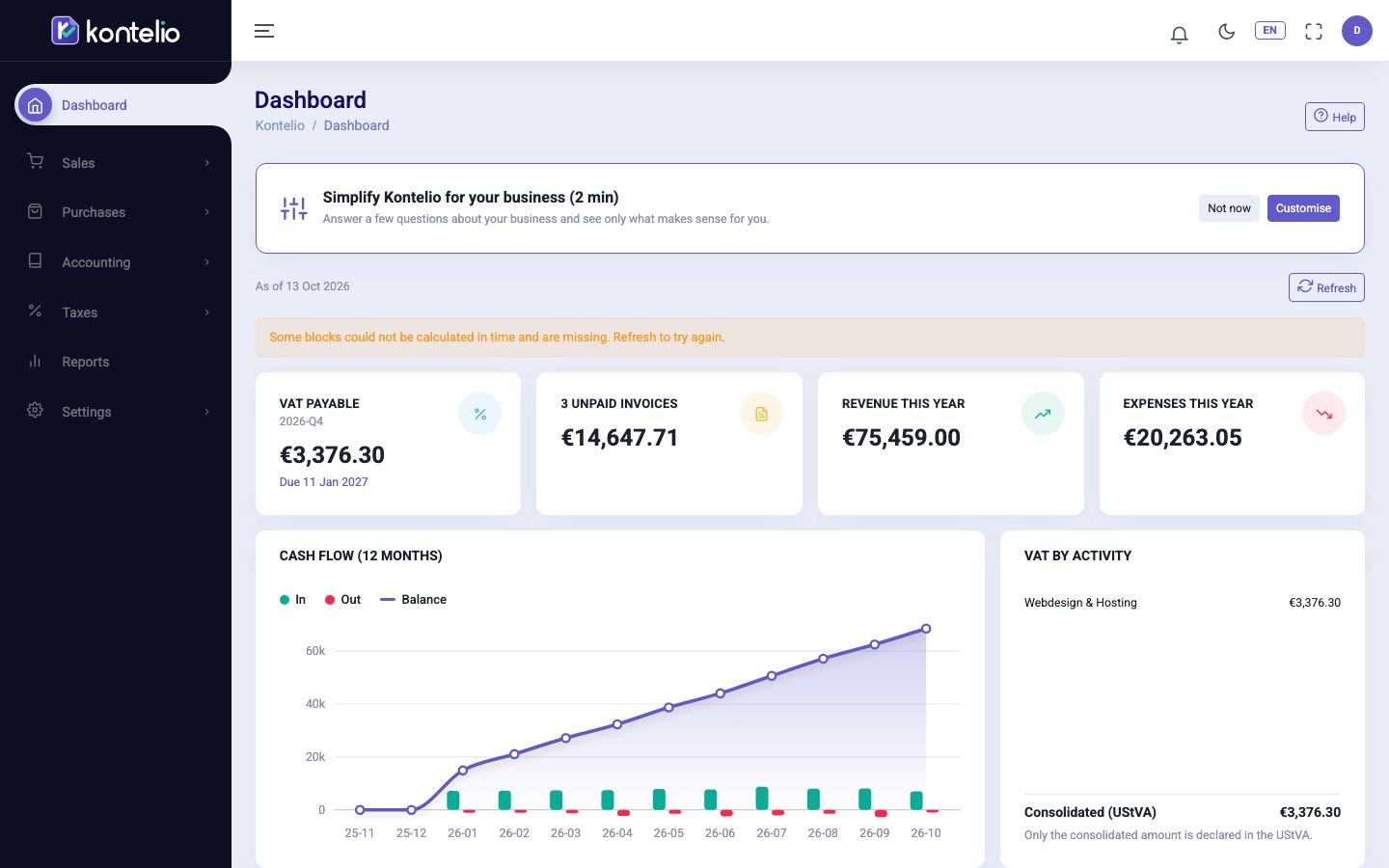
The side menu holds all areas of the application; the header runs along the top. Below the page title, the breadcrumb trail shows where you are.
| Element | What it is for |
|---|---|
| Show or hide the menu (☰) | Shows or hides the menu, for example on small screens. |
| Business activity | Selects one business activity or All activities. New invoices and expenses take over the selected activity, and some lists are filtered by it. Only visible if you have several activities. |
| Taxpayer | Switches the business owner if you manage several. |
| New | Quickly creates an invoice, a receipt, an expense or a customer. Only in the Simple mode; shortcut N. |
| Notifications (bell) | Shows deadline reminders and alerts, see Notifications. |
| Switch between light and dark mode (moon/sun) | Switches between a light and a dark appearance. |
| Choose language | Changes the language of the application. Your choice is saved in your profile. |
| Full screen | Uses the whole screen. |
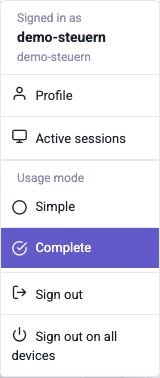
| Open the user menu (circle with your initials) | Profile, active sessions, usage mode and sign-out. |
Simple or Complete
Kontelio has two usage modes. You choose one in the user menu under Usage mode:
- Simple: a shorter menu in everyday language, a dashboard with tasks and only the features that fit your business. This requires the business profile under Customise my experience to be answered.
- Complete: all features and menu items, for anyone familiar with bookkeeping.
The switch takes effect immediately and only changes what is displayed, never your data or tax calculations. If you open a screen that belongs to the complete mode while in the Simple mode, a notice tells you so.
Help on every screen
Next to the page title you will find the Help button. It opens the manual page for the screen you are on. Links to other manual pages open in the same window; Back takes you back, and Open in a new tab lets you read the page in a tab of its own.
Plans
Kontelio is available in the Start, Business and Pro plans. Each plan includes everything in the previous one and allows more users. If you open a screen that your plan does not include, Kontelio shows the Plan page instead, naming the plan that includes it.
Which screens you see also depends on your roles. If a menu item is missing, ask the person who manages the users of your business.